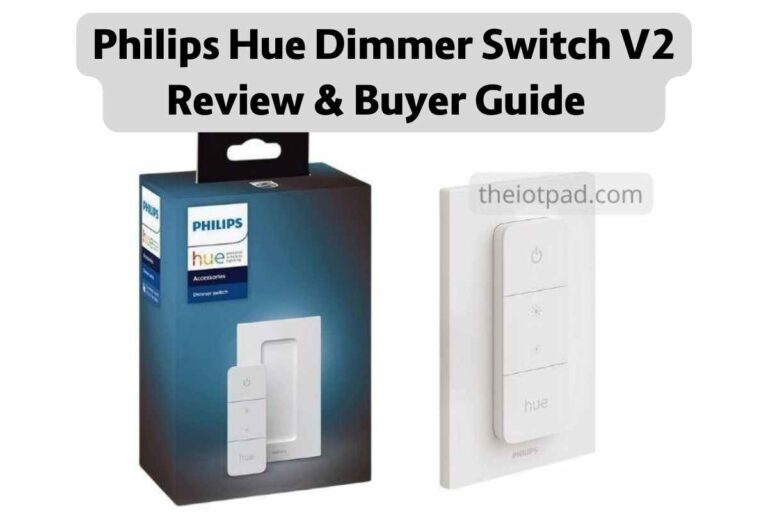
With a sleeker, more contemporary look and feel, the Philips Hue dimmer switch V2 is the newest offering from Philips. Trust the brand to take dimmer switches and controls to a whole new level. 

If you’re a die-hard fan of the Philips brand, you’ve likely come to expect innovation and style. And the latest Hue dimmer switch V2 checks all the boxes. Read ahead for the complete description of this product and what to expect from your purchase.

What’s the Philips Hue dimmer switch V2 all about?

Philips Hue Dimmer Switch V2: Review, Features, Pros & Cons
Hue smart Dimmer V1 vs V2

Philips Hue V2 smart dimmer switch is an improvement on the V1 from Philips with several new features. This version is perfect for users who appreciate how smart lighting works. But they don’t always want to give voice commands to their home automation systems like Amazon’s Alexa, HomeKit, and Google Assistant

If you would prefer not to look for your phone to switch the lights on and off, go for this gadget. It provides all the functionality of a wall-mounted dimmer switch. Aside from the on/off function, you can adjust the brightness and color to specifications. 

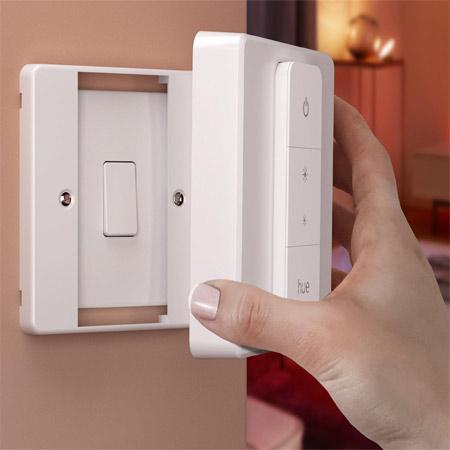
But, the most exciting feature is that it is essentially a magnet-backed remote control that you can carry around. 

The V1 version had one most significant downside. To use it, you would have to leave the switch in the on mode at all times. 

If you accidentally turned the switch off, it would not connect with the phone app. Or, with any home automation like Google Assistant or Apple HomeKit. But, the Hue dimmer switch V2 simply eliminates this problem by bringing dimmers back to basics.

Also Read

Best Color Changing LED Lights for your Room


Philips Hue V2 smart dimmer switch

Philips Hue V2 Smart Dimmer Switch


$24.98 – Buy on Amazon

Design & Specifications

How do I connect my Philips Hue Dimmer Switch?

Installing and using the Philips Hue dimmer switch V2 is unbelievably easy. The device comes with a base plate that you can attach to the wall with two pre-installed 3M adhesive strips. 

Unlike most other dimmer switches, you won’t have to struggle with opening the wall socket and hunting around for wires. Nor will you have to worry about attaching the proper wires to their corresponding terminals. Or, get the grounding wire right. You’ll simply attach the gadget to the wall and instantly connect to your phone app. 

The exciting thing is that the Hue dimmer switch V2 is compatible with your existing Philips phone app. Simply by turning the device on, you can find it on the Philips app since it integrates instantly. 

Further, you can configure multiple dimmer switches and follow the step-by-step instructions on the screen to understand how to use them. Here’s how:

  1. Open the Philips app Settings on your mobile phone or tablet.
  2. Select Accessories and Add an Accessory.
  3. You’ll see options asking if you wish to add the old V1 model. Or the latest Philips Hue dimmer switch V2 model. You’ll select your preference.
  4. Press and hold the On/Off button for 3 seconds.
  5. Your dimmer switch is now configured and ready for use.

Also Read

Philips Hue Start Kit Review

How Does the Philips Hue Switch V2 Work?

Similar to the V1 version, the Philips dimmer switch has four controls. At the top panel is the standard on/off switch. The center panel allows you to adjust the brightness of the bulbs in the room with a fluid motion. 

Pushing upward raises the brightness while pushing downward dims the bulbs. And, when you wish to change the color scene, you can use the “Hue” panel at the bottom of the switch. 

Features of the Philips Hue V2 Smart Dimmer Switch

Also Read

Can you put a dimmer switch on any light?

Pros

Cons

Hue Dimmer switch V2 wall plate

Should I Buy this switch?

Absolutely! If you’re using the Philips lighting ecosystem with multiple color changing light bulbs, purchasing this device is an obvious next step. Even if you’ve already invested in the V1 version, you can get a Philips Hue switch V2. You’ll love how easy it is to use and integrate with a hub. 

Frequently Asked Questions – FAQs

Does Philips hue dimmer switch require a bridge?

The Philips Hue switch V2 does not require a bridge to operate since it is Bluetooth-enabled. Once you install the smart bulb, it links directly with the dimmer switch through your phone or tablet device. All you need to do is download the Philips Hue app, and turn on the dimmer switch.

Next, find the device on the app by adding it in the Accessories section, and configure it to your specifications. You can link up to 10 bulbs and control them with the Philips Hue V2 smart dimmer switch. You’ll bring the dimmer switch close to the bulb and press down on the Power switch. Hold for a second or two until you see the LED light start to blink. That’s your indication that the device has paired successfully. 

Also Read: How to connect the wiring for 3 way dimmer switch
How do I reset my Hue Dimmer Switch v2?

Your Hue dimmer switch V2  allows you to erase your settings and get a Factory reset. Flip the device and you will see a Setup button at the back. Press down on this button and hold for 10 seconds. You’ll see the LED light on the Power switch is blinking rapidly. Your device is ready for a new configuration.

Does the Hue Dimmer Switch work with Bluetooth?

Yes. You can use Philips Hue switch V2 to adjust your lighting systems with a Bluetooth connection.

How long does the Hue Dimmer Switch battery last?

Your Philips Hue dimmer switch V2 will last for a minimum of 3 years before you need to replace it. 

Can I use a regular dimmer switch with Philips Hue bulbs?

It is advisable that you use Philips Hue bulbs with Hue-compatible dimmer switches so you get the full functionality. Pairing them with regular switches may result in the bulbs not working as efficiently as they should.

Also Read: Replacing a Regular Switch with a Dimmer Switch: Step-by-step Guide

Is the Philips dimmer switch energy efficient?

Since the Philips Hue dimmer switch V2 uses battery power, you need not worry about inflated electricity bills. However, you must factor in the energy costs of the smart bulb. Expect to pay $0.35 per month for one bulb, of which 1 cent is needed for the standby mode. 

Adrian Dance

You might call me a techie or a technology enthusiast. I’m one of those people whose largely self-taught in the worlds of computing, technology and engineering. I have a DIY approach to the use of smart home automation and think that with the right advice, anyone can improve their lives through greater use of technology.

Leave a Reply

Your email address will not be published. Required fields are marked *